RSS2.0

Showing posts with label Linux. Show all posts

Sunday, September 4, 2011

XFCE – Tweaks, Tips and Tricks

Taken from XFCE sources (xfce4-session-4.4.0.t...
XFCE
First of all, I probably made XFCE use little more processes and made it little heavier than it usually is. But if you love the layout and the applications, you might consider using it anyway. And some users don’t like Gnome 3 at all. So this post might help you consider trying XFCE again.

Use normal sound icon in system tray

Lets start with adding a “normal” sound icon in system tray area. That has increase/decrease sound when leftclick on it. And little more settings to change sound in your system.
sudo conary update gnome-media
It wont install any other dependencies of Gnome, so you wont poison your XFCE at all.

Use Notify-osd

Now we might want to make it look little nicer. so let’s change notify package. First we need to uninstall current one, before we install notify-osd.
Uninstall default one in XFCE:
sudo conary erase xfce4-notifyd
Install notify-osd instead:
sudo conary update notify-osd
And it’s done, should now see notify-osd when increasing sound in your laptop (or similar). Need to restart pidgin though, to see changes there.

Udev-notify for hardware devices

To make new hardware to show notifies alot nicer, you need to install udev-notify.
Open terminal and write
sudo conary update udev-notify

Read more about udev-notify here.

Recent Documents

You also missing recent documents? Then you need to add “Places” in your panel to be able to see recent documents. Also make sure you have xfce4-places-plugin. It’s in Foresight XFCE as default.

And today, this is how my desktop look like:


Remember that all packages that I write about, always is in fl:2-devel label. To see your current label, open terminal and write:
conary q group-gnome-dist --labels
Read more at: Development page

Enhanced by Zemanta

Friday, July 29, 2011

Practical Guide to Linux Commands, Editors, and Shell Programming, A (2nd Edition)


Practical Guide to Linux Commands, Editors, and Shell Programming, A (2nd Edition)


This is an excellent book that I highly recommend for anyone who want's to learn/keep up with the latest and greatest Linux Commands, Editiors, and Shell Programming Knowledge!

Such a great book it's actually worth buying if you are serious about learning Linux Commands, Editors, and Shell Programming!

Highly Recommended!

Also, here are some other great Linux books that I highly recommend purchasing while they're still in stock:


Wednesday, May 4, 2011

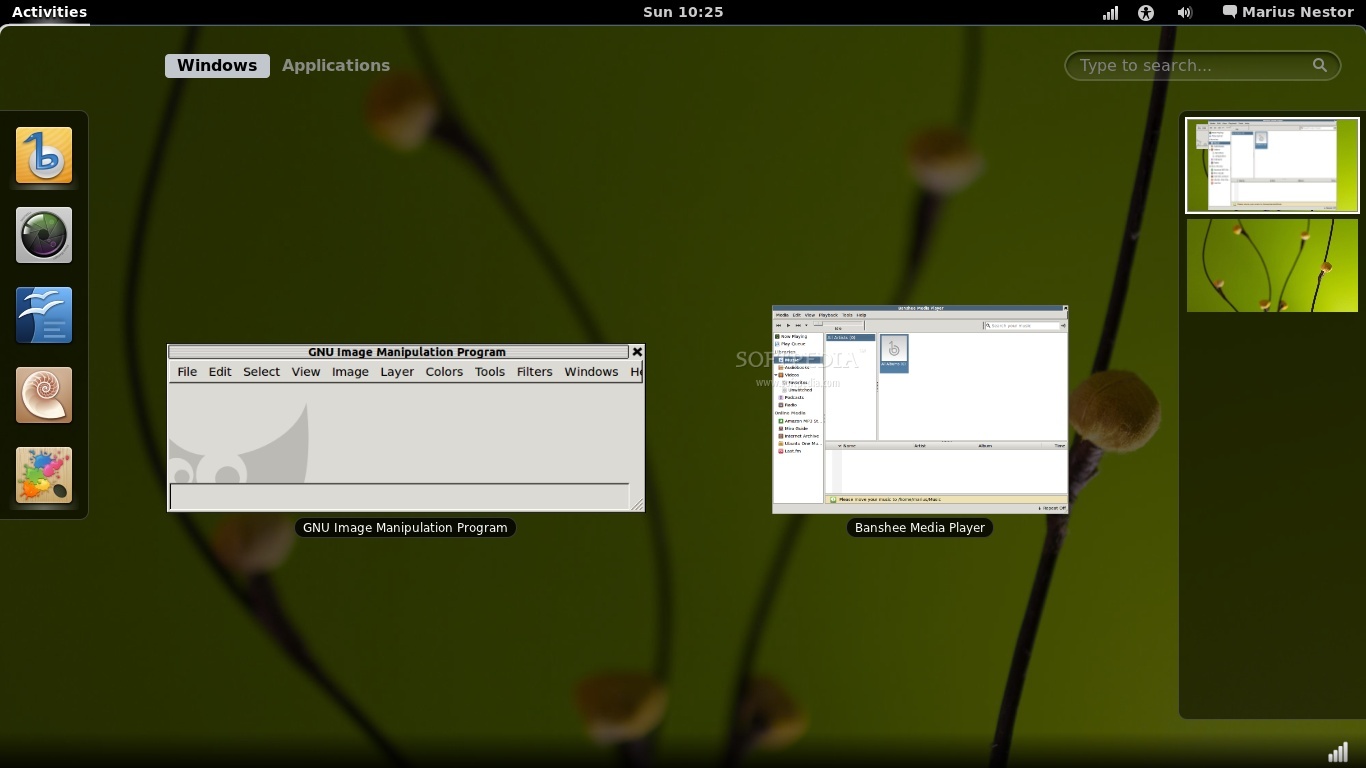
Install GNOME 3 on Ubuntu 11.04

The following tutorial will teach you guys how to install the highly anticipated

GNOME 3

desktop environment on the Ubuntu 11.04 (Natty Narwhal) OS.


GNOME 3 is the next evolution of the GNOME desktop environment, and it has been released on April 6th, 2011, on mirrors worldwide. GNOME 3 is a light desktop environment used in many popular Linux distributions, such as Ubuntu, Mandriva, PCLinuxOS, etc.

We've tested the tutorial on the beta version of the upcoming Ubuntu 11.04 (Natty Narwhal) distribution. To install

    GNOME
3 on your system follow the next step-by-step (with screenshots) tutorial.

WARNING: Attention! If you follow this toturial, you'll break your Unity session. There is no downgrading method for now. You've been warned!

Step 1Add the GNOME 3 repository

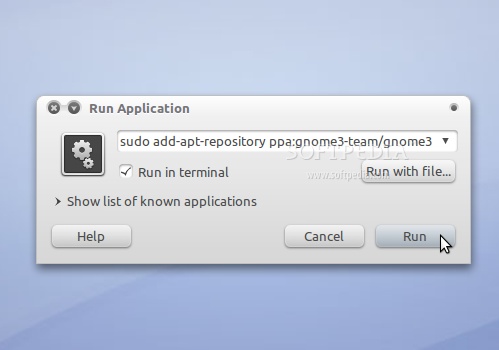
Hit the ALT+F2 key combination on your keyboard, check the "Run in terminal" option and paste the following command in the "Run Application" dialog:

sudo add-apt-repository ppa:gnome3-team/gnome3

Review image

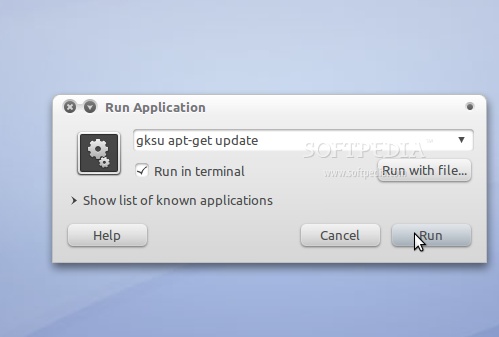
Enter your password when asked and hit the OK button. A terminal window will appear for a few seconds, and it will automatically close. Hit the ALT+F2 key combination again, check the "Run in terminal" option and paste the following command in the "Run Application" dialog:

gksu apt-get update

Review image

Enter your password when asked and hit the OK button. A terminal window will appear for a few seconds, and it will automatically close.

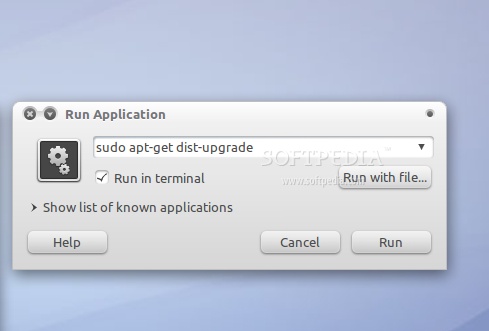
Hit the ALT+F2 key combination again, check the "Run in terminal" option and paste the following command in the "Run Application" dialog:

sudo apt-get dist-upgrade

Review image

A terminal window will appear. Enter your password and hit Enter. When you will be asked if you want to upgrade your packages, type Y and hit Enter. The terminal window will automatically close when the installation is over.

Step 2 - Install GNOME 3

Hit the ALT+F2 key combination again, check the "Run in terminal" option and paste the following command in the "Run Application" dialog:

sudo apt-get install gnome-shell

Enter your password and hit Enter. When you will be asked if you want to install gnome-shell, type Y and hit Enter. The terminal window will automatically close when the installation is over.

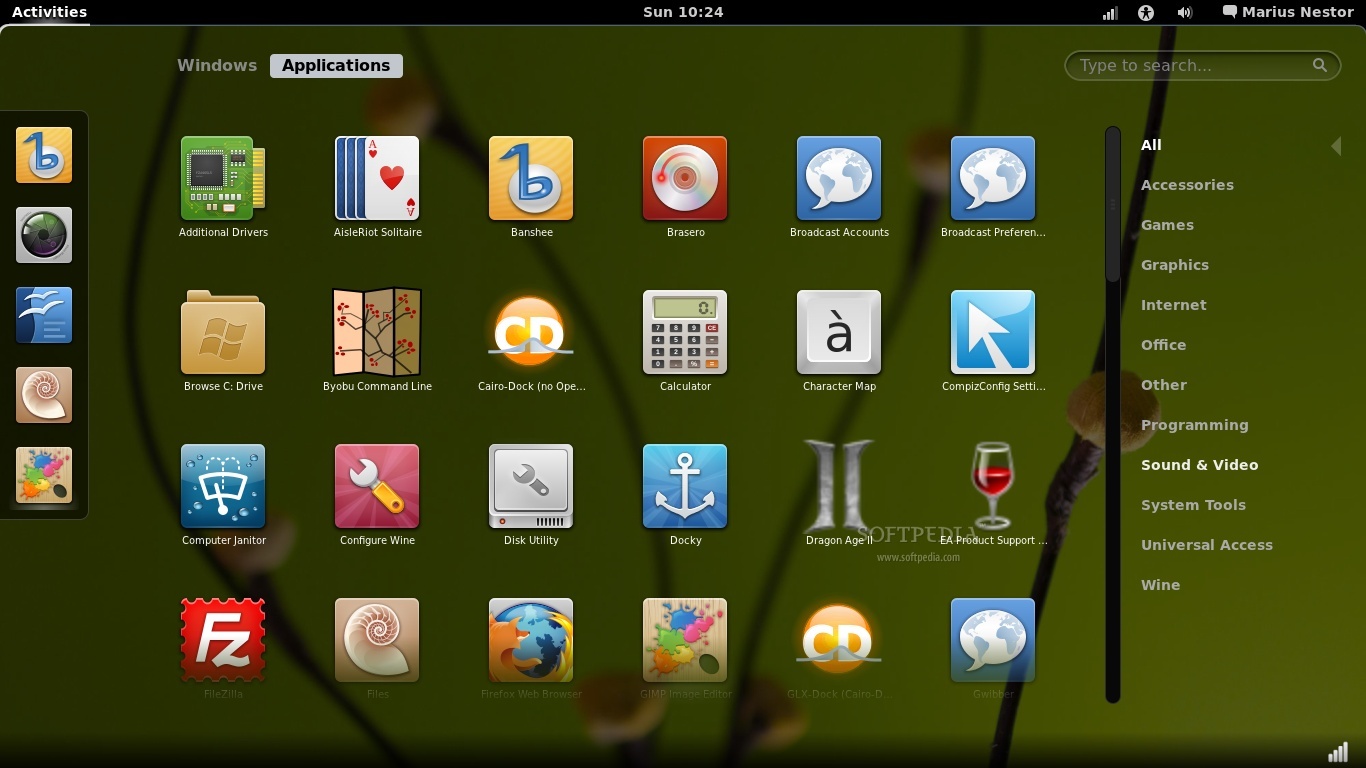
That's it! GNOME 3 is now completely installed in your Ubuntu machine. All you have to do now is to reboot your system and choose Ubuntu GNOME Shell Desktop at the login screen.

Enjoy your new GNOME 3 desktop environment!

Review image

Review image

In time, your GNOME 3 installation will automatically update to newer versions, so make sure you update your system regularly.

If you have problems with the tutorial, do not hesitate to comment below!

Monday, April 18, 2011

Slim Down and Speed Up Linux


Slim Down and Speed Up Linux


While Linux is pretty efficient with a computer's resources out of the box, there are still ways you can make it run leaner and meaner on your desktop. Using a little bit of know-how, a willingness to run a few terminal commands, and a mind for efficiency, you can get every last bit of power from your Linux box, or get more life from an older system. Read on for a roundup of ways to slim down and speed up Linux that any level of user can implement.

One quick note: Many of these tweaks require altering system files, disabling processes or otherwise changing how your system runs. Whenever you alter a system file, back it up. The easiest way is to open a terminal and create a ".backup" version of it. For instance, to back up the /etc/hosts file, open a terminal and type:
sudo cp /etc/hosts /etc/hosts.backup
More importantly, if you're unsure of anything, don't do it!

Prune your processes

The easiest and safest way to free up memory in any Linux system is to stop unnecessary programs and background processes from running, and then get your system to remember how you like it. Most Linux distributions have a tool in their "System" or "Administration" menus that let you see what's going on and halt things, if necessary—in Ubuntu, there are two of them: System->Preferences->Sessions, and System->Administration->Services. linuxspeed1_1.jpgOn every computer I've loaded Linux onto, there are a few startup programs I almost always disable from the "Sessions" menu. I don't sync my phone to my computer and use Thunderbird instead of the built-in Evolution, so the Bluetooth Manager and Evolution Alarm Notifier are first to go. Before touching anything in the "Services" window, consult this ExtremeTech guide for pointers on what is and isn't safe to turn off. As mentioned in the guide, Ubuntu (like most distro GUIs) only sees a few of the many services your computer is running. If you really want to fine-tune your system, you can install the sysv-rc-conf package found in many distros and surgically remove unnecessary background programs—but I'll reiterate that point made above about backing up and making only a few changes at a time.

Install Lighter, Faster Applications

linuxspeed2.jpgFull-featured, well-rounded programs like Firefox, OpenOffice.org, and Amarok are a big part of the growth in Linux users. For computers running tight on memory, however, they can make Linux feel less like the streamlined system it's meant to be. For users who only need the basics, there are lighter-weight alternative applications that take up less memory and move a little swifter.
  • Office programs: AbiWord, Gnumeric, KOffice—OpenOffice, like its proprietary adversary, Microsoft Office, has more features, settings and tools than any one user is likely ever going to need. For those who just want to be able to type documents and make basic spreadsheet edits, AbiWord and Gnumeric are a nice compromise between speed and features. KOffice is a bit more full-featured and KDE-oriented, but seems to run faster than OpenOffice.
  • File browsing: Thunar, PCMan—Both are fast, streamlined file browsers that don't try to offer up all the multimedia extras and graphical niceties that can bog down the default Nautilus (GNOME) and Konquerer (KDE) browsers. The PsychoCats site has a helpful guide for switching from Nautilus to Thunar; KDE users can also install Thunar or look into installing Dolphin from repositories, and any user can check out Google Docs, Zoho or other online office suites.
  • Web browsing: Opera, Konquerer—There are extremely light browsers that use far less memory than Firefox (Dillo, Epiphany, and the like), but the convenience and ease of use are hardly comparable. Opera, however, offers a small memory savings, and KDE's built-in browser is extensible and noticeably lighter.

Remove extra virtual terminals

Virtual terminals are a good tool to have—they offer a last-ditch escape to command line for a chance to fix things in a crashing system. But many Linux systems come with six of them enabled, which isn't usually necessary. You can usually disable five of them with few consequences. If you're using Gutsy, open a terminal and type in the following commands:
cd /etc/event.d
sudo mv tty3 tty3.bak
sudo mv tty4 tty4.bak
... and so on, through the tty6 file. If you're still on Feisty or other Linux distros, you'll likely have to edit the file in /etc/inittab and add a # character in front of the lines ending with tty3, tty4 and the like.

Reduce swappiness

linuxspeed3_1.jpg If your system generally has enough memory to handle what you throw at it, your use of swap space should be minimal, but your system doesn't know that. To temporarily lower your swappiness, type the following command into a terminal (replacing "sudo" with "su" in some systems):
sudo sysctl -w vm.swappiness=10
To make that fix permanent, enter the following command (trading "gedit" for "kate" in KDE systems, or "nano" or "vi" if you have neither):
sudo gedit /etc/sysctl.conf
In the file that comes up, look for the line vm.swappiness=x and change the value to 10, or add the line if it doesn't exist.

Get good with the terminal

linuxspeed4.jpg You've heard us evangelize about the efficiency of terminals before, but it's especially true in Linux. Give your terminal a handy keyboard shortcut, keep a list of basic commands handy, and learn to write bash scripts, create command shortcuts and find anything from one no-nonsense interface.

Five more tips and guides to speeding up your system

How do you optimize your Linux desktop? Let us know in the comments.
Kevin Purdy, Lifehacker's newest Associate Editor, digs finding optimization tips. His weekly feature will appear every Friday on Lifehacker.

Tuesday, March 15, 2011

5 Reasons to Try OpenSUSE 11.4

5 Reasons to Try OpenSUSE 11.4

With hundreds of Linux distributions to choose from, users of the open source operating system face what may almost be called an embarrassment of riches, so numerous are their options.

Of course there's Ubuntu--by far the most frequently downloaded and popular version of Linux, according to Distrowatch. Then there's Linux Mint--my second favorite--along with Debian, Puppy Linux, Zorin OS and Splashtop Linux, to name just a few.

Another very popular distro is openSUSE, which currently holds Distrowatch's No. 5 spot. Version 11.4 of the Novell-backed software was just released last week, and it features a number of compelling additions and updates that could make it the right choice for your business. Here's a small taste of what you can expect.

1. Stability and Power

Stability is a key focus of the openSUSE project, and the base system of this latest release is no exception. In addition, however, it adds better scalability and performance and an enhanced boot process, among other improvements.

Based on version 2.6.37 of the Linux kernel, the software takes advantage of numerous enhancements in that version, including better scalability of virtual memory management and separation of terminal users' tasks. The new kernel also brings additional hardware support, as I've noted before, including open Broadcom wireless drivers and improved Wacom support.

Better 2D and 3D acceleration, meanwhile, result from the inclusion of improved graphics drivers, the

openSUSE

project says.

With the ability to download simultaneously from multiple servers and to fetch only the parts of files that have changed,openSUSE now also offers much faster repository refreshments along with package installations and updates. A newly bolstered boot process, meanwhile, supports VirtualBox and the SELinux security framework.

2. Integrated Software Choices

    OpenSUSE
features the KDE Plasma Desktop 4.6 along with GNOME 2.32, Xfce 4.8 and LXDE 0.5 as alternatives. Also included is GNOME Shell, which will be part of the forthcoming GNOME 3.

OpenOffice.org has been replaced with LibreOffice 3.3.1--making OpenSUSE the first major distribution to ship the Document Foundation's new contender, the project says--and bothFirefox 4 and Scribus 1.4 are included as well.

All such software is deeply integrated for consistent functionality even in lighter-weight desktops such as Xfce and LXDE, the openSUSE project says. Keyboard shortcuts are set, for example, while menu layouts are tweaked and file associations are user-friendly.

For improved integration of LibreOffice and Firefox into KDE Plasma, the operating system uses native file dialogs and oxygen styling, and it respects the user's mail client and browser choices.

3. Continuous Updates

Whereas traditionally users have had to rely on a set release cycle for updates to their software, openSUSE 11.4 introduces the new Tumbleweed rolling release repository as an option. Tumbleweed contains the latest stable versions of software such as Firefox and Thunderbird, making it easier for users to stay up to date.

OpenSUSE 11.4

4. Administrative Tools

Targeting administrators and developers, OpenSUSE 11.4 ships the latest virtualization and Web server stacks along with "all the major development languages, platforms and associated IDEs," the project says. Included among the additions, for example, are Xen 4.0.2, VirtualBox 4.0.4 and KVM 0.14 for virtualization and Apache 2.2.17, Lighttpd 1.4.26 and Ngninx 0.8.54 on the Web server side.

Version 9.0.3 of PostgreSQL, the MySQL 5.1.53 community edition and the MariaDB 5.1 fork are also included.

5. The Freedom of Linux

Last but definitely not least are all the myriad benefits you get when you use most any version of Linux, including the freedom to modify the software to suit your business, the freedom from vendor lock-in, the freedom from rampant malware and the freedom from exorbitant costs.

Did I mention that openSUSE is free? It's now available for download at no cost, but can also be purchased for $71.50 as a retail version with 90-day installation support, physical media and a printed Getting Started guide. Whichever route you take, there's no better time to take openSUSE for a test drive.