Calculate Linux 11.12 brings many changes, especially the inclusion of the new Linux kernel 3.1.6, X.Org 7.4, KDE SC 4.7.4, GNOME 2.32, Amarok 2.4.3, and LibreOffice 3.4.4 office suite. Calculate Linux 11.12 contains the following editions: Calculate Directory Server (CDS), Calculate Linux Desktop KDE (CLD), Calculate Linux Desktop GNOME (CLDG), Calculate Linux Desktop Xfce (CLDX), Calculate Media Center (CMC), Calculate Linux Scratch (CLS) and Calculate Scratch Server (CSS). Featured Highlights of Calculate Linux 11.12:
About Calculate Linux Calculate Linux is a Gentoo-based Linux distribution originally from Russia. It is available in many formats, Live CD or Live DVD, server or desktop editions, for both i686 and x86_64 platforms. Calculate Linux's goal is to be easy to install, easy to use and easy to update. Calculate Linux has support for many file systems, such as EXT4, EXT3, EXT2, XFS, ReiserFS, JFS and even FAT32 (for USB installations). Download Calculate Linux 11.12 Desktop (GNOME and KDE) right now from Softpedia. Download Calculate Linux 11.12 XFCE Desktop right now from Softpedia. Download Calculate Linux 11.12 Scratch Desktop right now from Softpedia. Download Calculate Linux 11.12 Directory Server right now from Softpedia. Download Calculate Linux 11.12 Scratch Server right now from Softpedia. Download Calculate Linux 11.12 Media Center right now from Softpedia. | ||||
Saturday, December 31, 2011
Calculate Linux 11.12 Has Linux Kernel 3.1.6


Saturday, November 26, 2011
Kernel 3.2 RCX Released - openSUSE 12.1 Repository Link to install/compile Kernel automatically
Kernel 3.2 RCX Released
Here is the repository for the new 3.2 RCX Kernel on openSUSE 12.1
openSUSE 12.1 Kernel 3.2 RCX Repository
Link to install/compile Kernel automaticallyhttp://download.opensuse.org/repositories/Kernel:/HEAD/standard
ENJOY!
Best Regards,
James
Wednesday, November 16, 2011
openSUSE 12.1 Released today! - Release Notes.
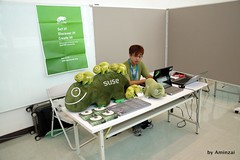 |
| Image by COSCUP via Flickr |
openSUSE 12.1 Release Notes:
Version:12.1.7 (2011-11-09)
Copyright © 2011 Novell, Inc.
Permission is granted to copy, distribute and/or modify this document under the terms of the GNU Free Documentation License, Version 1.2 or any later version published by the Free Software Foundation; with no Invariant Sections, no Front-Cover Texts, and no Back-Cover Texts. A copy of the license is included as the fdl.txt file.
If you upgrade from an older version to this openSUSE release, see previous release notes listed here: http://en.opensuse.org/openSUSE:Release_Notes
These release notes cover the following areas:
- Miscellaneous
- Installation
- N/A
- General
- System Upgrade
- Technical
- Initializing Graphics with KMS (Kernel Mode Setting)
- Radeon HDMI Sound Output Being Disabled
- System Shutdown with systemd
- systemd: Supplying Service Start-up Parameters
- Booting with systemd or sysvinit
- CUPS 1.5
- The rename Command
- NetworkManager Command Line Interface
- rpm: %_topdir Changed for Non-root Users
- Miscellaneous: These entries are automatically included from openFATE, the Feature- and Requirements Management System (http://features.opensuse.org).
For the moment, these snippets are listed unsorted—we are working on improvements. - Installation: Read this if you want to install the system from scratch.
- General: Information that everybody should read.
- System Upgrade: Issues related to the process if you run a system upgrade from the previous release to this openSUSE version.
- Technical: This section contains a number of technical changes and enhancements for the experienced user.
Miscellaneous
YaST AppArmor Configuration Module
FATE Categories for https://features.opensuse.org/305278: AppArmor, YaST.Find the AppArmor Configuration module now in the "Security and Users" section of the YaST Control Center.
Installation
N/AGeneral
openSUSE Documentation
CHECKIT for 12.1!- In Start-Up, find step-by-step installation instructions, as well as introductions to the KDE and Gnome desktops and to the LibreOffice suite.
- Reference covers deployment, administration, and system configuration in detail and explains how to set up various network services.
- The Security Guide introduces basic concepts of system security, covering both local and network security aspects.
- The System Analysis and Tuning Guide helps with problem detection, resolution and optimization.
- Virtualization with KVM offers an introduction to setting up and managing virtualization with KVM, libvirt and QEMU tools.
GNOME 3
GNOME 3 offers a new design for the desktop that is different from GNOME 2. As a result, and in order to have users benefit from the changes, the look and feel of your GNOME 2 desktop will not be migrated automatically. The System Settings can be used to customize GNOME 3, and an advanced tool (gnome-tweak-tool) is provided for more detailed customization.The standard mode of GNOME 3 requires support for 3D acceleration in the graphic drivers. When 3D acceleration is not available, GNOME 3 then uses the fallback mode. If it turns out that GNOME 3 detects availability of 3D acceleration, but the standard mode is unusable, then you likely hit a bug in the graphic drivers. You can force the fallback mode with the "gnome.fallback=1" argument on the boot line in grub.
If you use the fallback mode, you can customize the panels by pressing Alt when right-clicking on a panel.
For a brief description of many GNOME Shell features, such as keybindings, drag and drop capabilities, and special utilities, see https://live.gnome.org/GnomeShell/CheatSheet.
PulseAudio Sound System
The PulseAudio sound system is now system-wide integrated and enabled by default for new installation. If you disabled it on a previous release, and want to enable it now, check thePULSEAUDIO_ENABLE variable in /etc/sysconfig/sound:Set PULSEAUDIO_ENABLE to "yes" to forcefully enable PA everywhere. Setting PULSEAUDIO_ENABLE to "no" will disable PulseAudio completely, and setting it to "custom" means to keep a custom configuration untouched.
Windows Domain Logon with KDM
The SUSE KDM theme does not allow Windows Domain logons.To work around this issue, set DISPLAYMANAGER_KDM_THEME to an empty string in /etc/sysconfig/displaymanager to use the default KDM theme:
DISPLAYMANAGER_KDM_THEME=""
Oracle Java Externally Available
The java-1_6_0-sun package is not anymore part of openSUSE due to a license change. We ship the OpenJDK build as a replacement. openSUSE users who prefer to use the Oracle JDK binary version over the openSUSE OpenJDK build, can download the Oracle version from http://oracle.com/java.System Upgrade
Mounting Encrypted Partitions with systemd
If encrypted partitions are not automatically mounted with systemd, the noauto flag in /etc/fstab for these partitions could be the cause. Replacing this flag with nofail will fix it. For instance, change the following line:/dev/mapper/cr_sda3 /home ext4 acl,user_xattr,noauto 0 2to
/dev/mapper/cr_sda3 /home ext4 acl,user_xattr,nofail 0 2
Technical
Initializing Graphics with KMS (Kernel Mode Setting)
With openSUSE 11.3 we switched to KMS (Kernel Mode Setting) for Intel, ATI and NVIDIA graphics, which now is our default. If you encounter problems with the KMS driver support (intel, radeon, nouveau), disable KMS by adding nomodeset to the kernel boot command line. To set this permanently, add it to the kernel command line in /boot/grub/menu.lst. This option makes sure the appropriate kernel module (intel, radeon, nouveau) is loaded with modeset=0 in initrd, i.e. KMS is disabled.In the rare cases when loading the DRM module from initrd is a general problem and unrelated to KMS, it is even possible to disable loading of the DRM module in initrd completely. For this set the NO_KMS_IN_INITRD sysconfig variable to yes via YAST, which then recreates initrd afterwards. Reboot your machine.
On Intel without KMS the Xserver falls back to the fbdev driver (the intel driver only supports KMS); alternatively, for legacy GPUs from Intel the "intellegacy" driver (xorg-x11-driver-video-intel-legacy package) is available, which still supports UMS (User Mode Setting). To use it, edit /etc/X11/xorg.conf.d/50-device.conf and change the driver entry to intellegacy.
On ATI for current GPUs it falls back to radeonhd. On NVIDIA without KMS the nv driver is used (the nouveau driver supports only KMS). Note, newer ATI and NVIDIA GPUs are falling back to fbdev, if you specify the nomodeset kernel boot parameter.
Radeon HDMI Sound Output Being Disabled
Due to problems on some hardware HDMI sound output has been disabled by default on the radeon driver, which is the default driver for AMD/ATI graphics cards.It can be re-enabled by adding radeon.audio=1 as a kernel parameter. In YaST, go to System -> Boot Loader, then click Edit on the default entry, and add the following to the end of 'Optional Kernel Command Line Parameter':
radeon.audio=1Then reboot to apply the change.
Alternatively, users can install the proprietary driver from AMD. For more information, see http://en.opensuse.org/SDB:ATI_drivers.
System Shutdown with systemd
To halt and poweroff the system when using systemd, issue halt -p or shutdown -h now on the command-line or use the shutdown button provided by your desktop environment.Note: A plain halt will not shutdown the system properly.
systemd: Supplying Service Start-up Parameters
systemctl only supports "standard" parameters (see http://www.freedesktop.org/wiki/Software/systemd/Incompatibilities).You can bypass this new behavior by calling the start-up script directly, for example:
cd /etc/init.d
./apache2
Booting with systemd or sysvinit
By default, openSUSE now boots using systemd. In case of trouble, you can switch back to the old way using sysvinit by pressing the F5 key on the boot.If you want to switch to sysvinit permanently, install the sysvinit-init package. To switch back to systemd, reinstall the systemd-sysvinit package.
CUPS 1.5
CUPS 1.5 comes with backward incompatible changes:- CUPS no longer supports the ~/.cupsrc or ~/.lpoptions configuration files from CUPS 1.1. Instead use ~/.cups/client.conf and ~/.cups/lpoptions that were introduced with CUPS 1.2.
- The scheduler now requires that filters and backends have group write permissions disabled for improved security. If you use third party printer drivers from manufacturers with relaxed file permissions, adjust the permissions manually.
The rename Command
According to the GNU Coding Standards, the rename command now treats all strings beginning with a dash as a command line option. To prevent this, separate the option from the other arguments with -- as follows:#!/bin/bash for f in *.jpg ; do rename -- ".jpg" "-$RANDOM.jpg" $f ; done
NetworkManager Command Line Interface
cnetworkmanager is no longer available—use nmcli instead. For migration information, see http://repo.or.cz/w/cnetworkmanager.git/blob_plain/HEAD:/nmcli-migration.html.rpm: %_topdir Changed for Non-root Users
Unprivileged users can no longer write to /usr/src/packages. rpmbuild> now uses ~/rpmbuild by default. To change the directory add a line as follows to ~/.rpmmacros:%_topdir /some/where/elseTo use the subdirectory foo of $HOME add to ~/.rpmmacros:
%_topdir %{getenv:HOME}/foo
Citations: Information pulled from the Official
openSUSE 12.1 Release Notes
Version:12.1.7 (2011-11-09)
Copyright © 2011 Novell, Inc.
Permission is granted to copy, distribute and/or modify this document under the terms of the GNU Free Documentation License, Version 1.2 or any later version published by the Free Software Foundation; with no Invariant Sections, no Front-Cover Texts, and no Back-Cover Texts. A copy of the license is included as the fdl.txt file.
If you upgrade from an older version to this openSUSE release, see previous release notes listed here: http://en.opensuse.org/openSUSE:Release_Notes
These release notes cover the following areas:
- Miscellaneous
- Installation
- N/A
- General
- System Upgrade
- Technical
- Initializing Graphics with KMS (Kernel Mode Setting)
- Radeon HDMI Sound Output Being Disabled
- System Shutdown with systemd
- systemd: Supplying Service Start-up Parameters
- Booting with systemd or sysvinit
- CUPS 1.5
- The rename Command
- NetworkManager Command Line Interface
- rpm: %_topdir Changed for Non-root Users
- Miscellaneous: These entries are automatically included from openFATE, the Feature- and Requirements Management System (http://features.opensuse.org).
For the moment, these snippets are listed unsorted—we are working on improvements. - Installation: Read this if you want to install the system from scratch.
- General: Information that everybody should read.
- System Upgrade: Issues related to the process if you run a system upgrade from the previous release to this openSUSE version.
- Technical: This section contains a number of technical changes and enhancements for the experienced user.
Miscellaneous
YaST AppArmor Configuration Module
FATE Categories for https://features.opensuse.org/305278: AppArmor, YaST.Find the AppArmor Configuration module now in the "Security and Users" section of the YaST Control Center.
Installation
N/AGeneral
openSUSE Documentation
CHECKIT for 12.1!- In Start-Up, find step-by-step installation instructions, as well as introductions to the KDE and Gnome desktops and to the LibreOffice suite.
- Reference covers deployment, administration, and system configuration in detail and explains how to set up various network services.
- The Security Guide introduces basic concepts of system security, covering both local and network security aspects.
- The System Analysis and Tuning Guide helps with problem detection, resolution and optimization.
- Virtualization with KVM offers an introduction to setting up and managing virtualization with KVM, libvirt and QEMU tools.
GNOME 3
GNOME 3 offers a new design for the desktop that is different from GNOME 2. As a result, and in order to have users benefit from the changes, the look and feel of your GNOME 2 desktop will not be migrated automatically. The System Settings can be used to customize GNOME 3, and an advanced tool (gnome-tweak-tool) is provided for more detailed customization.The standard mode of GNOME 3 requires support for 3D acceleration in the graphic drivers. When 3D acceleration is not available, GNOME 3 then uses the fallback mode. If it turns out that GNOME 3 detects availability of 3D acceleration, but the standard mode is unusable, then you likely hit a bug in the graphic drivers. You can force the fallback mode with the "gnome.fallback=1" argument on the boot line in grub.
If you use the fallback mode, you can customize the panels by pressing Alt when right-clicking on a panel.
For a brief description of many GNOME Shell features, such as keybindings, drag and drop capabilities, and special utilities, see https://live.gnome.org/GnomeShell/CheatSheet.
PulseAudio Sound System
The PulseAudio sound system is now system-wide integrated and enabled by default for new installation. If you disabled it on a previous release, and want to enable it now, check thePULSEAUDIO_ENABLE variable in /etc/sysconfig/sound:Set PULSEAUDIO_ENABLE to "yes" to forcefully enable PA everywhere. Setting PULSEAUDIO_ENABLE to "no" will disable PulseAudio completely, and setting it to "custom" means to keep a custom configuration untouched.
Windows Domain Logon with KDM
The SUSE KDM theme does not allow Windows Domain logons.To work around this issue, set DISPLAYMANAGER_KDM_THEME to an empty string in /etc/sysconfig/displaymanager to use the default KDM theme:
DISPLAYMANAGER_KDM_THEME=""
Oracle Java Externally Available
The java-1_6_0-sun package is not anymore part of openSUSE due to a license change. We ship the OpenJDK build as a replacement. openSUSE users who prefer to use the Oracle JDK binary version over the openSUSE OpenJDK build, can download the Oracle version from http://oracle.com/java.System Upgrade
Mounting Encrypted Partitions with systemd
If encrypted partitions are not automatically mounted with systemd, the noauto flag in /etc/fstab for these partitions could be the cause. Replacing this flag with nofail will fix it. For instance, change the following line:/dev/mapper/cr_sda3 /home ext4 acl,user_xattr,noauto 0 2to
/dev/mapper/cr_sda3 /home ext4 acl,user_xattr,nofail 0 2
Technical
Initializing Graphics with KMS (Kernel Mode Setting)
With openSUSE 11.3 we switched to KMS (Kernel Mode Setting) for Intel, ATI and NVIDIA graphics, which now is our default. If you encounter problems with the KMS driver support (intel, radeon, nouveau), disable KMS by adding nomodeset to the kernel boot command line. To set this permanently, add it to the kernel command line in /boot/grub/menu.lst. This option makes sure the appropriate kernel module (intel, radeon, nouveau) is loaded with modeset=0 in initrd, i.e. KMS is disabled.In the rare cases when loading the DRM module from initrd is a general problem and unrelated to KMS, it is even possible to disable loading of the DRM module in initrd completely. For this set the NO_KMS_IN_INITRD sysconfig variable to yes via YAST, which then recreates initrd afterwards. Reboot your machine.
On Intel without KMS the Xserver falls back to the fbdev driver (the intel driver only supports KMS); alternatively, for legacy GPUs from Intel the "intellegacy" driver (xorg-x11-driver-video-intel-legacy package) is available, which still supports UMS (User Mode Setting). To use it, edit /etc/X11/xorg.conf.d/50-device.conf and change the driver entry to intellegacy.
On ATI for current GPUs it falls back to radeonhd. On NVIDIA without KMS the nv driver is used (the nouveau driver supports only KMS). Note, newer ATI and NVIDIA GPUs are falling back to fbdev, if you specify the nomodeset kernel boot parameter.
Radeon HDMI Sound Output Being Disabled
Due to problems on some hardware HDMI sound output has been disabled by default on the radeon driver, which is the default driver for AMD/ATI graphics cards.It can be re-enabled by adding radeon.audio=1 as a kernel parameter. In YaST, go to System -> Boot Loader, then click Edit on the default entry, and add the following to the end of 'Optional Kernel Command Line Parameter':
radeon.audio=1Then reboot to apply the change.
Alternatively, users can install the proprietary driver from AMD. For more information, see http://en.opensuse.org/SDB:ATI_drivers.
System Shutdown with systemd
To halt and poweroff the system when using systemd, issue halt -p or shutdown -h now on the command-line or use the shutdown button provided by your desktop environment.Note: A plain halt will not shutdown the system properly.
systemd: Supplying Service Start-up Parameters
systemctl only supports "standard" parameters (see http://www.freedesktop.org/wiki/Software/systemd/Incompatibilities).You can bypass this new behavior by calling the start-up script directly, for example:
cd /etc/init.d
./apache2
Booting with systemd or sysvinit
By default, openSUSE now boots using systemd. In case of trouble, you can switch back to the old way using sysvinit by pressing the F5 key on the boot.If you want to switch to sysvinit permanently, install the sysvinit-init package. To switch back to systemd, reinstall the systemd-sysvinit package.
CUPS 1.5
CUPS 1.5 comes with backward incompatible changes:- CUPS no longer supports the ~/.cupsrc or ~/.lpoptions configuration files from CUPS 1.1. Instead use ~/.cups/client.conf and ~/.cups/lpoptions that were introduced with CUPS 1.2.
- The scheduler now requires that filters and backends have group write permissions disabled for improved security. If you use third party printer drivers from manufacturers with relaxed file permissions, adjust the permissions manually.
The rename Command
According to the GNU Coding Standards, the rename command now treats all strings beginning with a dash as a command line option. To prevent this, separate the option from the other arguments with -- as follows:#!/bin/bash for f in *.jpg ; do rename -- ".jpg" "-$RANDOM.jpg" $f ; done
NetworkManager Command Line Interface
cnetworkmanager is no longer available—use nmcli instead. For migration information, see http://repo.or.cz/w/cnetworkmanager.git/blob_plain/HEAD:/nmcli-migration.html.rpm: %_topdir Changed for Non-root Users
Unprivileged users can no longer write to /usr/src/packages. rpmbuild> now uses ~/rpmbuild by default. To change the directory add a line as follows to ~/.rpmmacros:%_topdir /some/where/elseTo use the subdirectory foo of $HOME add to ~/.rpmmacros:
%_topdir %{getenv:HOME}/foo
Article originally from: openSUSE 12.1 Release Notes Official Page

Saturday, October 29, 2011
OpenSUSE 12.1 delivers Fedora punch with GNOME 3
Review The big news in openSUSE 12.1, whose first beta has recently dropped, is the arrival of GNOME 3 – in this case GNOME 3.2.
Unlike Fedora, which is already into its second GNOME 3-based release, openSUSE had – thanks to its release schedule – stuck with GNOME 2 for its last release earlier this year.
OpenSUSE 12.1 embraces GNOME 3.2 and, like Fedora 16, drops support for the GNOME 2.x line.
This release marks a slight change to openSUSE's versioning convention. If you were thinking this should be openSUSE 12.0, you're correct. But the openSUSE project has decided to stop releasing .0 versions. Strange perhaps, but in the wacky world of software versioning that adjustment is fairly minor. OpenSUSE 12.1 it is.
If you've used any of the milestone releases preceding the beta there isn't much in the way of new features here, but there are a lot of bug fixes and component upgrades. Perhaps the most noticeable is the move to GNOME 3.2, which was released not long ago.
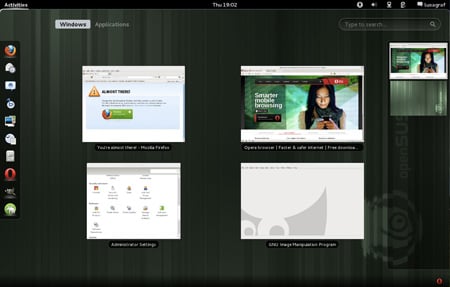 GNOME 3.x finally makes its presence felt in openSUSE
Naturally you'll find all of the improvements that come with GNOME
3.2 in openSUSE 12.1, including the new integrated chat and messaging
system that's now built in to GNOME. There's also a new status bar
notifications system that lets you to do everything from reply to chat
messages to browsing files or eject external disks. Status bar messages
can also now display a counter, for example to show the number of unread
emails or new chat messages.
GNOME 3.2 in openSUSE looks identical to what you'll find in the recent Fedora 16 beta release. Unlike previous versions of GNOME, where the menu layouts and desktop environment could be tweaked to create considerable variation, there is – thus far – little that downstream distros can do to customize the look of GNOME 3. A few outside GNOME Shell themes do exist, but they primarily consist of changing the menu colors.
Given how much the openSUSE project used to customize GNOME 2.x – moving the main menu to the bottom, layering in its own very Windows-esque start menu and more – current openSUSE GNOME users may experience something of a shock moving to GNOME 3.2.
All of openSUSE's old GNOME theming is gone in openSUSE 12.1 and with it goes much of what made openSUSE's GNOME effort different from that of Ubuntu and Fedora.
The absence of easily customised themes for GNOME 3.2 isn't just an end user complaint, it's something of a downside for distros as well, particularly distros like openSUSE that completely reworked the GNOME interface.
In a way openSUSE will likely lose some of its appeal – particularly with potential new users who are often focused on what the desktop looks like. OpenSUSE's custom GNOME menu bar at the bottom of the screen mimicked Windows because that appealed to the openSUSE audience, "the broader non-technical community of computer users interested in Linux", as the openSUSE website puts it. The website even goes on to say, in explaining how it is different from Fedora, that openSUSE boasts "many of the top open source GUI designers in the world".
Whether or not you agree is irrelevant; what's interesting is that with GNOME 3 it really doesn't matter how many GUI designers your distro has on staff anymore. At least for now, GNOME 3 effectively eliminates the more subtle visual distinctions between Linux distros.
OpenSUSE does include the gnome-tweak-tool, which can help change some of the GNOME Shell settings, but even with that you're not going to recreate the old openSUSE GNOME skin. GNOME 3.2 is just not built with that kind customisation in mind. Out of the box, there's now little visible difference between openSUSE 12.1, Fedora 16 or even Ubuntu 11.10 if you swap out Unity for GNOME 3.
In the case of openSUSE that means things like the YaST package system, a stronger set of multimedia options, stability and of course all the enterprise-level tools that come from SUSE Enterprise Linux.
Indeed that's where the focus for openSUSE 12.1 has been and you'll find plenty of new features under the hood. Among them Btrfs file system, systemd, which has finally made its way into openSUSE, and PulseAudio, which has been integrated system-wide.
If you like what's on the inside as much as on the interface, then the openSUSE 12.1 beta's for you.®
Unlike Fedora, which is already into its second GNOME 3-based release, openSUSE had – thanks to its release schedule – stuck with GNOME 2 for its last release earlier this year.
OpenSUSE 12.1 embraces GNOME 3.2 and, like Fedora 16, drops support for the GNOME 2.x line.
This release marks a slight change to openSUSE's versioning convention. If you were thinking this should be openSUSE 12.0, you're correct. But the openSUSE project has decided to stop releasing .0 versions. Strange perhaps, but in the wacky world of software versioning that adjustment is fairly minor. OpenSUSE 12.1 it is.
If you've used any of the milestone releases preceding the beta there isn't much in the way of new features here, but there are a lot of bug fixes and component upgrades. Perhaps the most noticeable is the move to GNOME 3.2, which was released not long ago.
GNOME 3.x finally makes its presence felt in openSUSEGNOME 3.2 in openSUSE looks identical to what you'll find in the recent Fedora 16 beta release. Unlike previous versions of GNOME, where the menu layouts and desktop environment could be tweaked to create considerable variation, there is – thus far – little that downstream distros can do to customize the look of GNOME 3. A few outside GNOME Shell themes do exist, but they primarily consist of changing the menu colors.
Given how much the openSUSE project used to customize GNOME 2.x – moving the main menu to the bottom, layering in its own very Windows-esque start menu and more – current openSUSE GNOME users may experience something of a shock moving to GNOME 3.2.
All of openSUSE's old GNOME theming is gone in openSUSE 12.1 and with it goes much of what made openSUSE's GNOME effort different from that of Ubuntu and Fedora.
The absence of easily customised themes for GNOME 3.2 isn't just an end user complaint, it's something of a downside for distros as well, particularly distros like openSUSE that completely reworked the GNOME interface.
In a way openSUSE will likely lose some of its appeal – particularly with potential new users who are often focused on what the desktop looks like. OpenSUSE's custom GNOME menu bar at the bottom of the screen mimicked Windows because that appealed to the openSUSE audience, "the broader non-technical community of computer users interested in Linux", as the openSUSE website puts it. The website even goes on to say, in explaining how it is different from Fedora, that openSUSE boasts "many of the top open source GUI designers in the world".
Whether or not you agree is irrelevant; what's interesting is that with GNOME 3 it really doesn't matter how many GUI designers your distro has on staff anymore. At least for now, GNOME 3 effectively eliminates the more subtle visual distinctions between Linux distros.
OpenSUSE does include the gnome-tweak-tool, which can help change some of the GNOME Shell settings, but even with that you're not going to recreate the old openSUSE GNOME skin. GNOME 3.2 is just not built with that kind customisation in mind. Out of the box, there's now little visible difference between openSUSE 12.1, Fedora 16 or even Ubuntu 11.10 if you swap out Unity for GNOME 3.
Behind the GNOME
The interesting side effect of leveling the GUI playing field in GNOME is that it throws the spotlight on what arguably should be the primary means of judging a distro – all the stuff under the hood.In the case of openSUSE that means things like the YaST package system, a stronger set of multimedia options, stability and of course all the enterprise-level tools that come from SUSE Enterprise Linux.
Indeed that's where the focus for openSUSE 12.1 has been and you'll find plenty of new features under the hood. Among them Btrfs file system, systemd, which has finally made its way into openSUSE, and PulseAudio, which has been integrated system-wide.
If you like what's on the inside as much as on the interface, then the openSUSE 12.1 beta's for you.®
Wednesday, September 14, 2011
openSUSE LINUX 12.1 to get a Beta Version!
The openSUSE project has announced that the upcoming sixth milestone release of version 12.1 of the openSUSE operating system will be reclassified as a beta. Jos Poortvliet, the openSUSE community manager for SUSE Linux, says that the change "reflects the state of this milestone, being ready for more extensive testing".
When the beta is released, Poortvliet asks the community to "give it a good workout", suggesting that they organise Beta Pizza parties all around the world. According to release team coordinator Stephan "Coolo" Kulow, "the sixth milestone has sometimes gotten less testing than it deserved. We want to ensure the quality and stability of openSUSE and give users the best experience as possible.”
The openSUSE 12.1 beta is scheduled to arrive on Thursday, 22 September, and will be followed by two release candidates (RC); the final version is to be released on 11 November 2011. Developers, testers and early adopters who plan to test the upcoming beta are asked to report any bugs that they find so that they can be fixed before the final release.
The most recent stable release of the distribution is version 11.4 from March of this year.
openSUSE is my personal favorite distro and I can't wait to get to test out the 12.1 Beta! Linux in general has come a long way in the past couple of years. Especially some of the major distros such as openSUSE, Ubuntu, Mandriva Linux, Etc.
I can't wait to see Linux Distros on Virtually Every PC in the world! We truly should just adopt Linux as the TRUE "Universal OS" which every company, developer, etc. supports and contributes to it; thus, making a truly "Ultimate and Universal OS" that eliminates the barriers and problems with the compatibility issues and everything else which is really only holding the software back and keeping it many steps behind he hardware...
Free, Linux, Open-Source! That's the future of Computers and the Internet as well as Tablets and Smart Phones!
openSUSE 12.1 beta
openSUSE 12.1 beta
openSUSE 12.1 beta
Subscribe to:
Posts (Atom)

 Posts
Posts


